
How to Use Stem Cover in Studio
In Studio v1.1, you now have the ability to take any clip within Studio and Cover it into a different sound or instrument while still retaining the melody and rhythm of the original stem/clip. This allows you to hum a melody and turn it into a violin, or record yourself tapping a surface right onto the timeline and turn it into a full drum groove.
For this example, we went ahead and recorded some syncopated finger tapping in Studio to make a drum fill using a laptop mic for convenience. We then duplicated the track with the recording to get started on our stem cover.
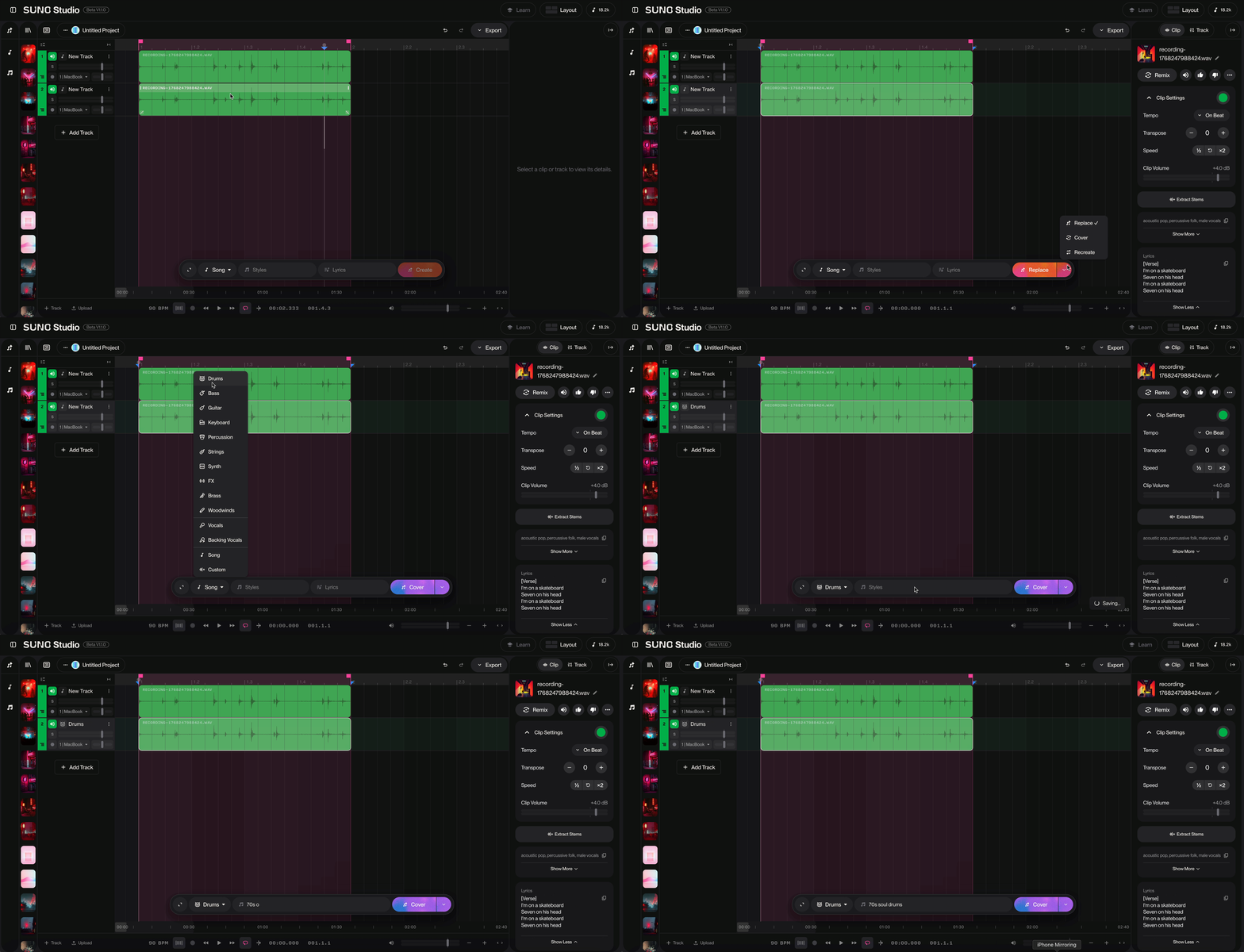
Lets make a 70s soul type of drum fill from those finger taps.
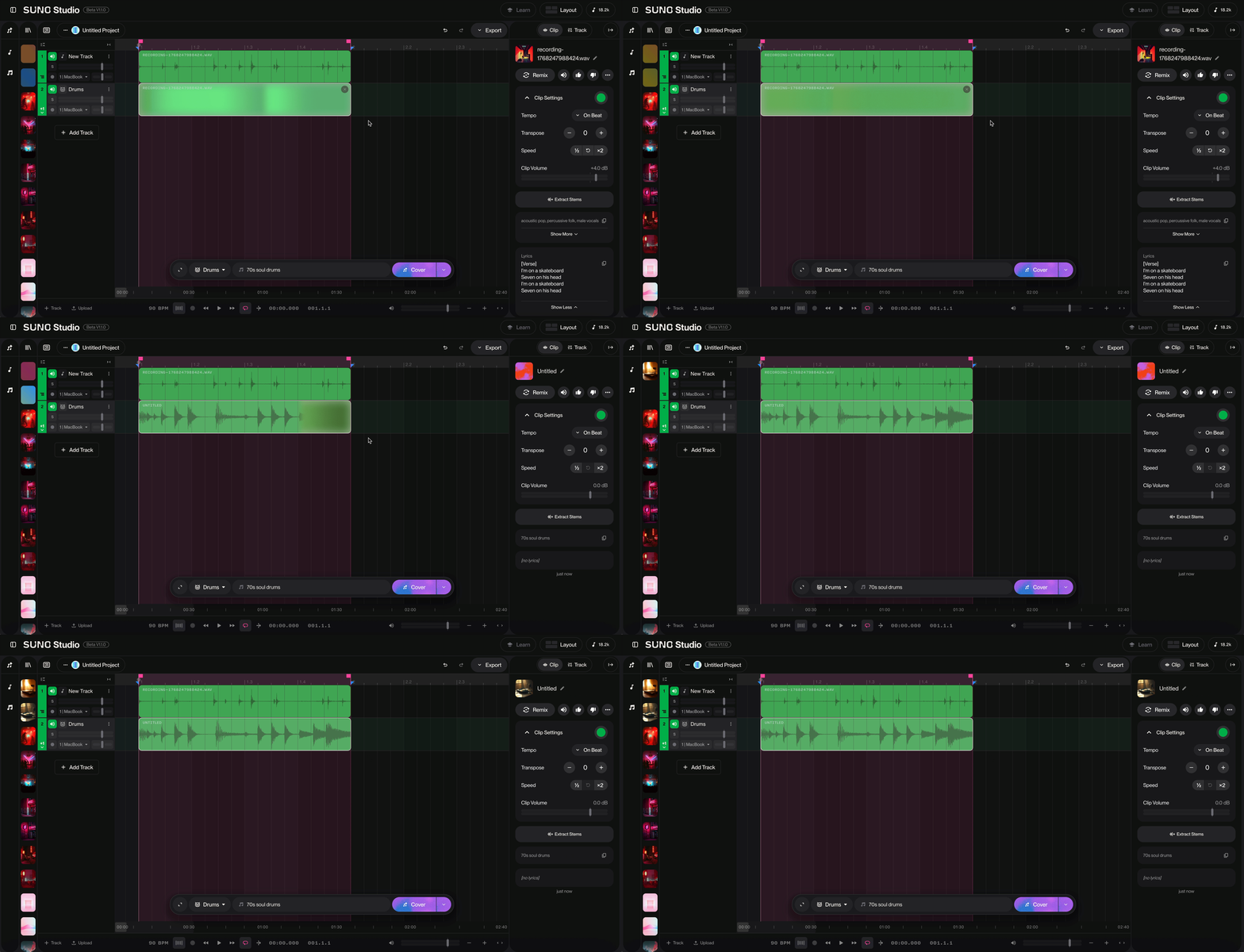
As you can see, Covering the stem gave us a drum track that matches the timing pretty well with the original recording. Just like with Remix and Replace, you'll get two generations per prompt that you can find in the Take Lanes. But, you can hear for yourself how it came out in this playlist.
Key Concept: Cover vs. Recreate
Understanding these two distinct modes is crucial for controlling your workflow:
Cover: Always references the original source audio that was first used to generate a clip. Even if you cover a guitar stem that was itself created from a ukulele, the AI will refer back to the original ukulele recording.
Recreate: Uses the currently selected audio on the track as its source to generate a new variation. This lets you iterate further on an already-covered stem.
It's important to note that if we were to do Cover again, we'd be covering the current drum part that's on that track. But by doing Recreate, it's going to go back and cover the original finger tapping that we fed into it in the first place.
There's so much you can do with Covering Stems in Studio. Your next song awaits you!