
Getting started with Suno Bridge
Suno Bridge [beta] is a standalone app that lets you generate new audio with Suno and drop it straight onto your DAW timeline, without leaving your session. Currently, it is compatible with Ableton Live (we recommend using Live 12) on Mac only.
WHAT SUNO BRIDGE DOES
Suno Bridge analyzes your project in order to generate tempo synced stems and collaborate with the overall vibe of your project. You describe the sound you want, Bridge generates it with Suno, and the audio file is placed directly on your Live timeline.
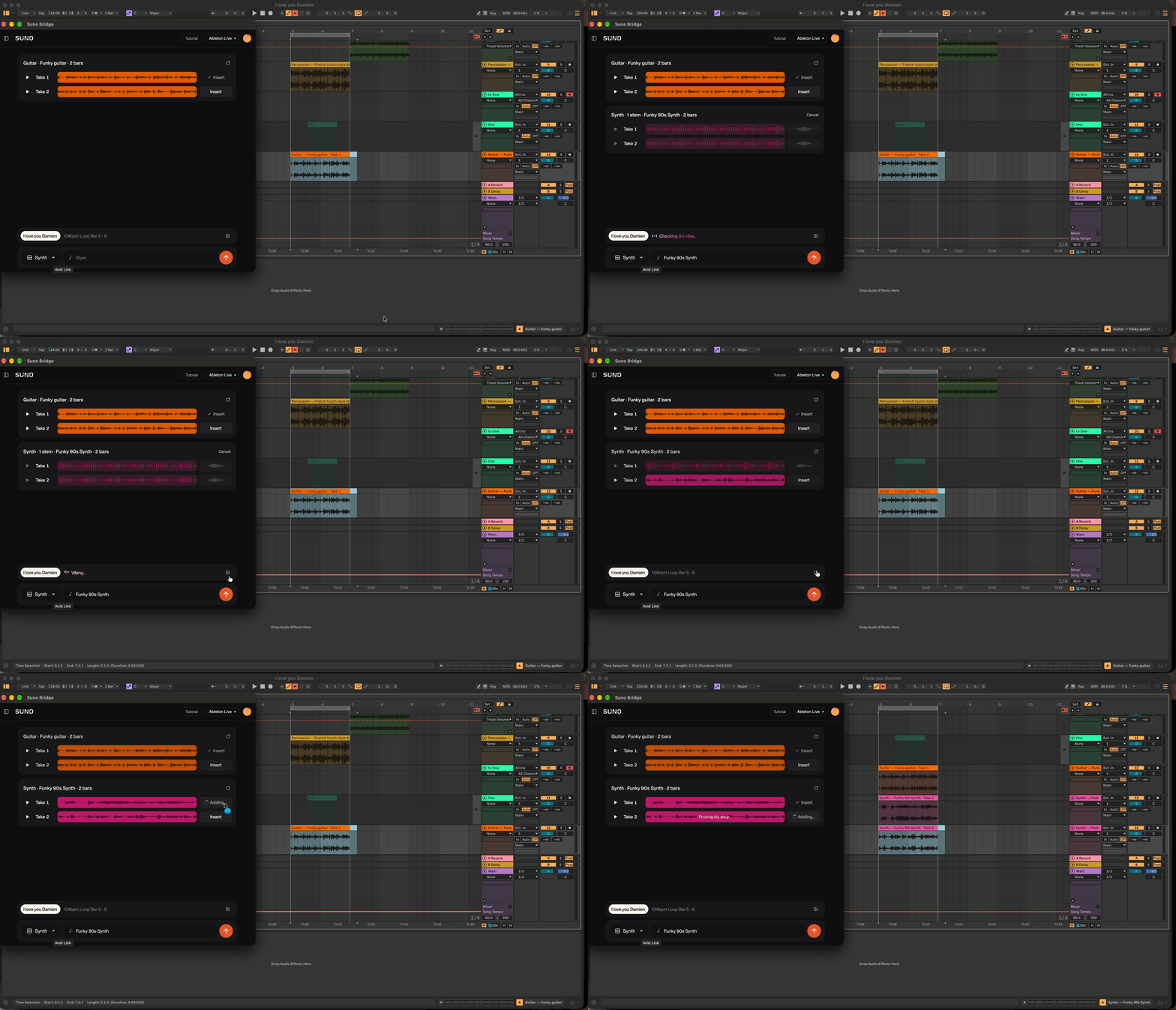
That means no exporting, downloading, and dragging files between Suno and Ableton. You stay in your session, and every stem you generate works with everything Live already does, including your VST and AU plugins, effects racks, and audio routing.
WHAT YOU NEED
Computer: A Mac running macOS. As of right now, Bridge isn't available for Windows.
Ableton Live: We recommend Live 12
Suno account: A Suno account with a Premier subscription.
Credits: Generations from Bridge use 10 Credits
INSTALL AND SIGN IN
1. Download Suno Bridge: Get the installer from https://suno.com/bridge.
2. Install the app: Open the downloaded file and drag Suno Bridge into your Applications folder.
3. Sign in to Suno: Open Suno Bridge and select Sign in. Your browser opens so you can sign in to your Suno account, then returns you to Bridge.
4. Connect to Ableton Live: With Live open, follow the prompt in Bridge to connect.
Note: You only need to connect once. After that, Bridge reconnects automatically whenever both apps are open.
GENERATE AUDIO ONTO YOUR TIMELINE IN ABLETON LIVE
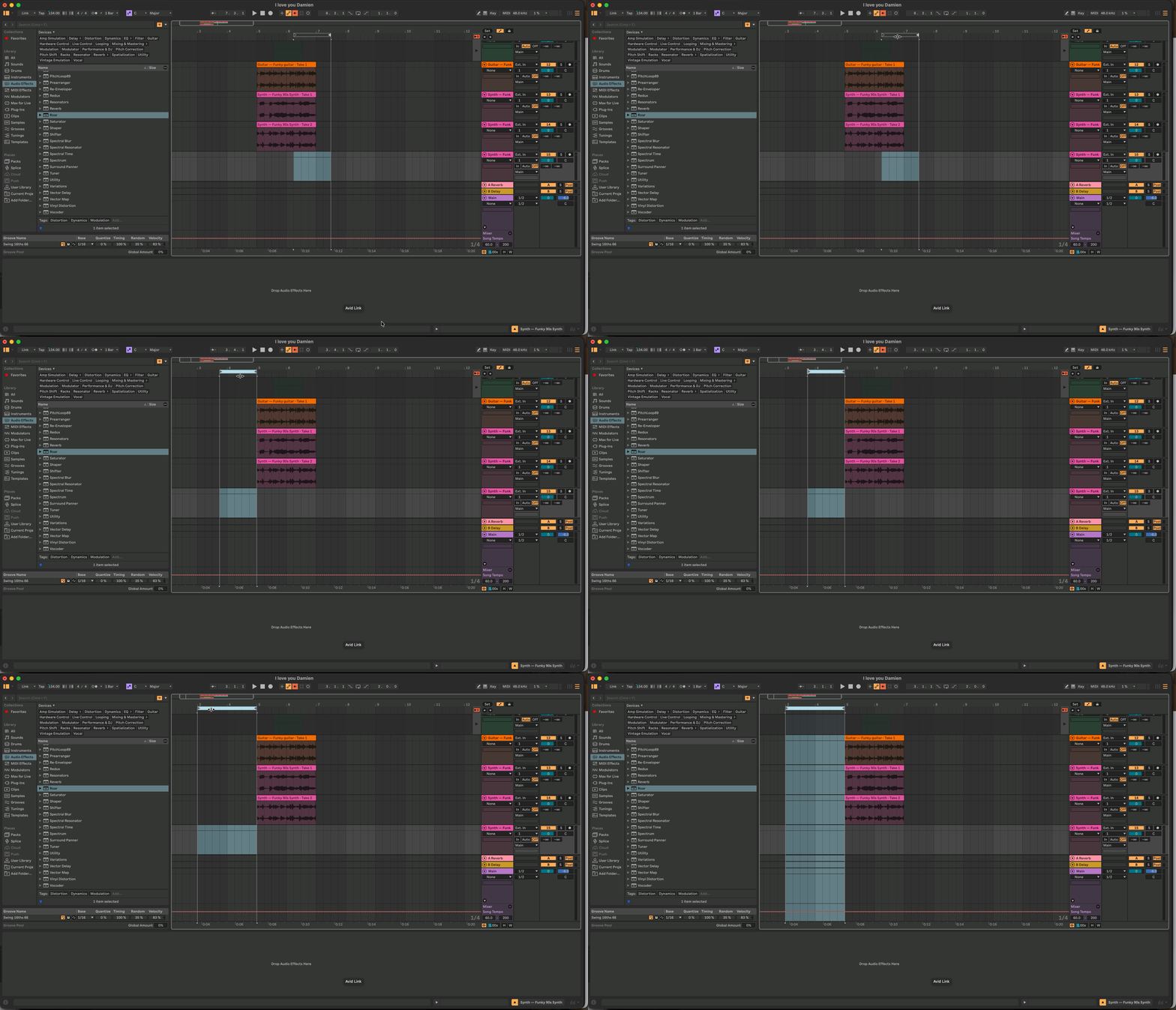
1. Choose where the audio goes
In Live, select the region with the loop start/end markers.
2. Describe the sound
In Bridge, type what you're looking for. Use the dropdown instrument menu, then describe the mood, texture, or genre. For example "dusty vinyl electric piano chords."
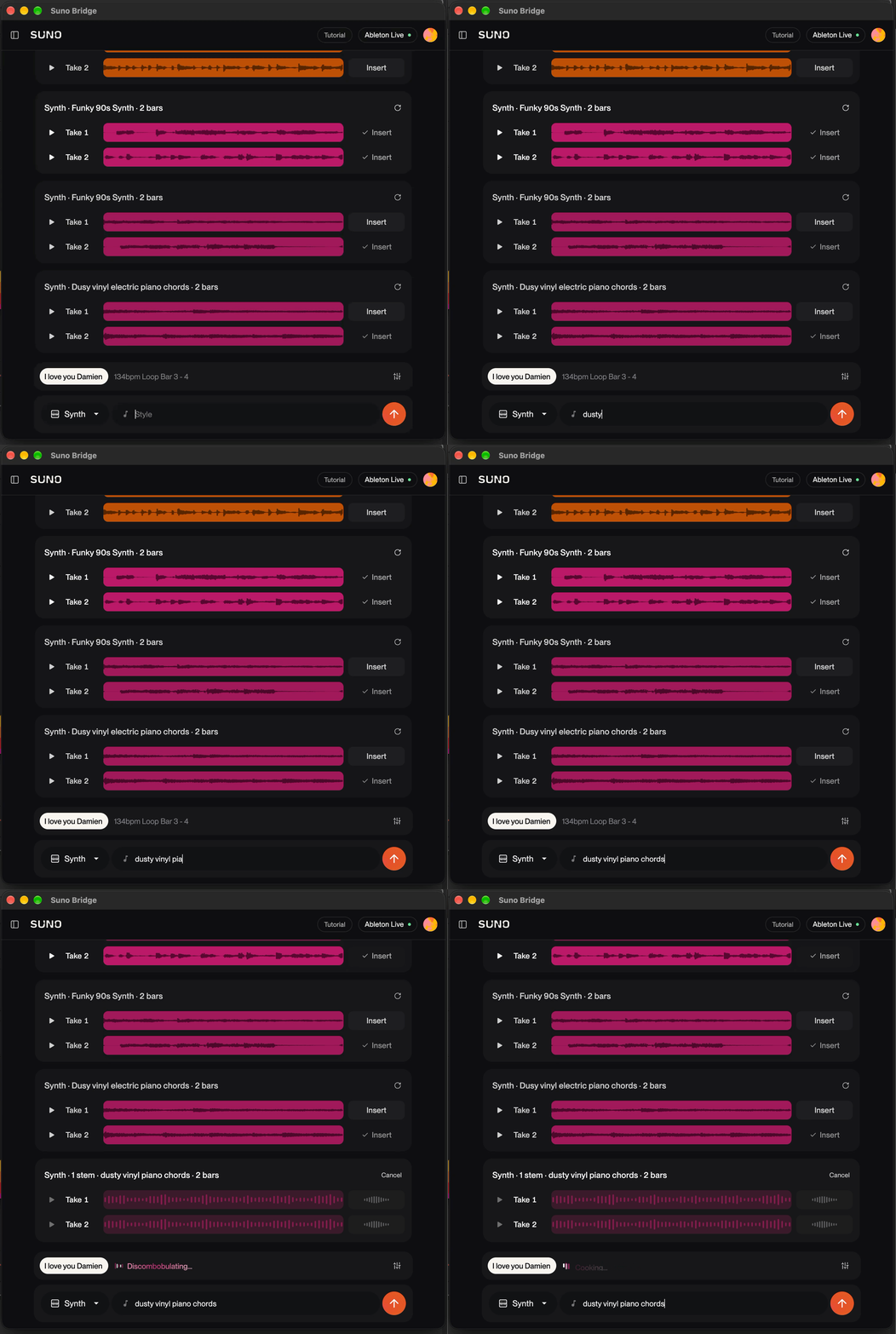
3. Select Generate
Bridge sends your request to Suno. Generation can take up to a couple of minutes, depending on the length of the stem.
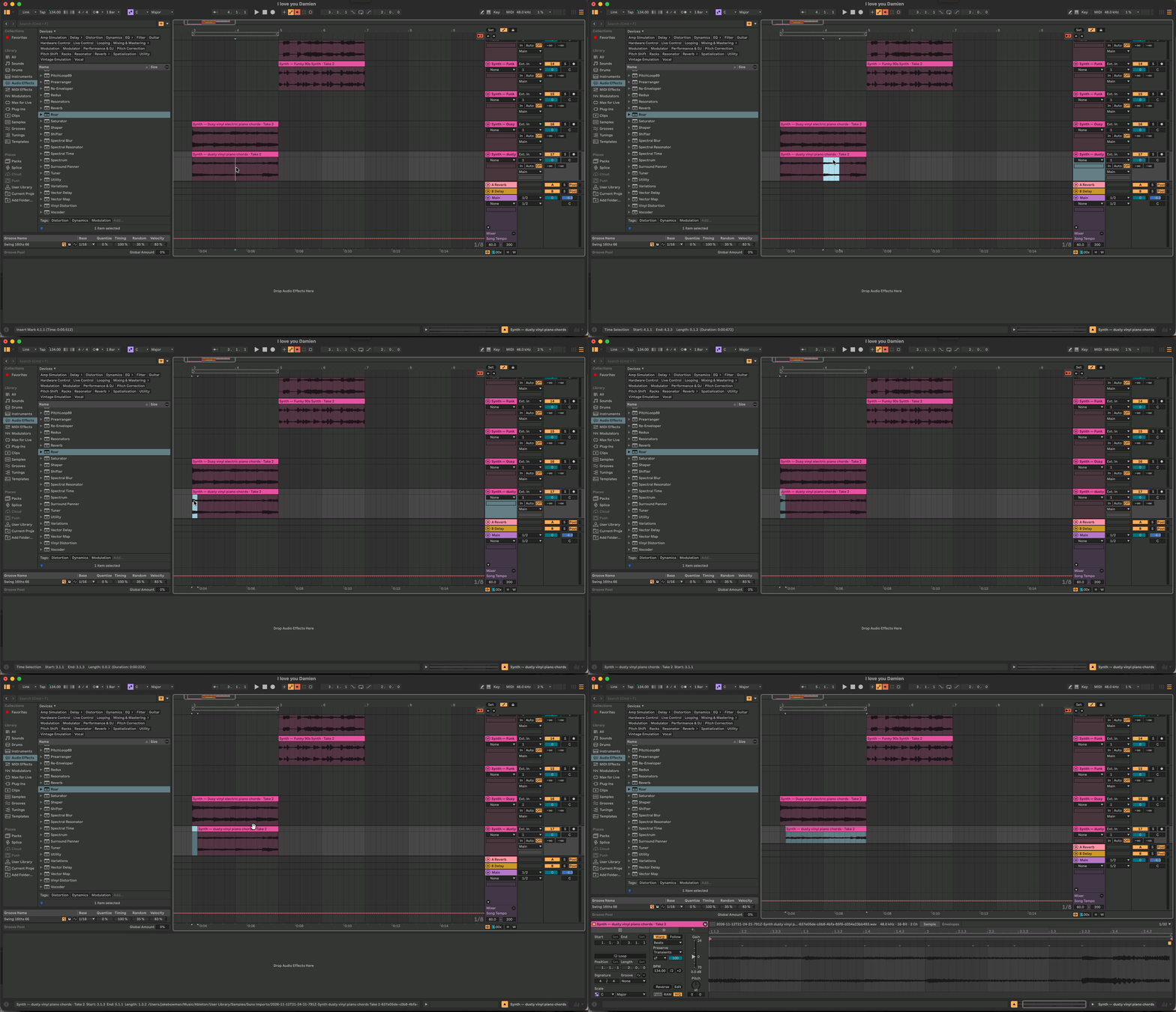
4. Find your clip in Live
When it's ready, the audio is placed on your selected track. Play it back, then keep it, edit it, route it through your favorite plugins and effects, or generate again.
WORKING WITH YOUR CLIPS
Clips from Bridge are regular audio files in your Live set, so you can treat them like any other recording.
- Add plugins, effects racks, or sends to shape the sound.
- Warp, slice, or chop clips to fit your arrangement.
- Route the track to buses or resample it like any audio source.
- Save your Live set as usual. To keep generated files with your project, use File > Collect All and Save.
ADVANCED CONTROLS
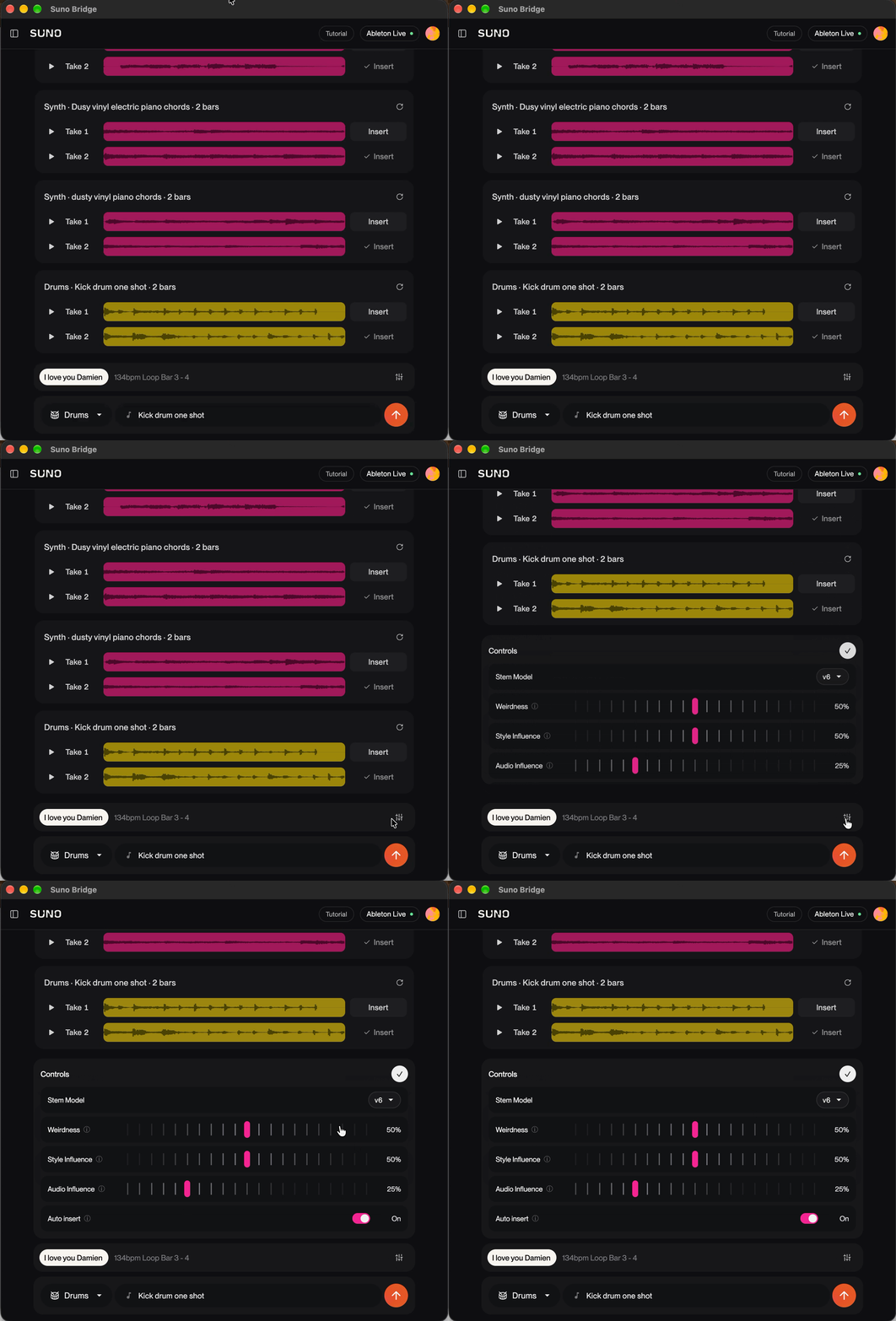
Just like in Create or Studio’s Chat, Bridge allows you to utilize familiar Advanced Controls such as Weirdness, Style Influence, and Audio Influence. One unique control is the Auto Insert control which adds new takes to your Live Set as soon as they’re ready. By default it’s switched ON. Click the toggle to switch Auto Insert OFF.
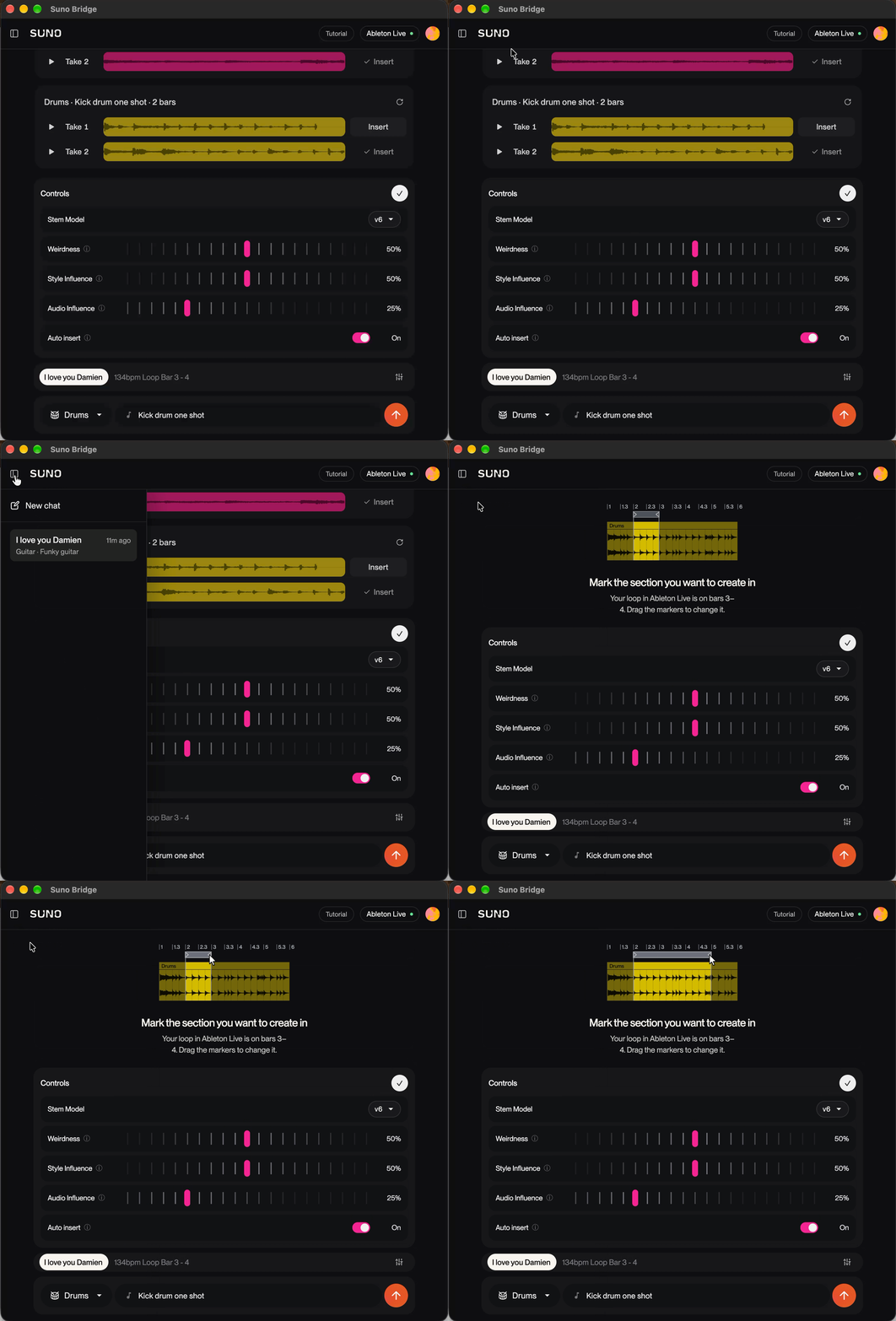
Accessing Chats
If you need to access previous chats or start a new chat, select the expand window at the top left corner.
TROUBLESHOOTING
Bridge says it can't find Ableton Live
Make sure Live is open and you're on a supported version. Quit and reopen both apps, then try connecting again. If macOS asked for a permission during setup, check that it's turned on in System Settings. [To confirm which permission]
The clip didn't appear on my track
Check that you selected an audio track, not a MIDI or return track, before generating. If the track is frozen or locked, unfreeze it and try again.
Generation failed or is taking a long time
Check your internet connection and that you have enough credits. If generation keeps failing, sign out of Bridge, sign back in, and try again.
I can't sign in
Make sure your browser isn't blocking the sign-in window, and that you're using the same account you use on suno.com.
FAQ
Which DAWs does Suno Bridge work with?
At beta launch, Suno Bridge is compatible with Ableton Live 12 or later. We plan to expand to more DAWs soon!
Does Suno Bridge work on a Windows PC?
At beta launch, Suno Bridge only works on Mac. In the future, we plan to expand to other platforms.
What does Suno do with the files I connect using Bridge?
When you open a session in Bridge, it uploads your Ableton Live project and its audio files to your Suno account. From there, you can use Suno to generate new takes on them that fit your session using Suno’s tools. Bridge only uploads the project you choose. If it can’t access some audio files, it asks for your permission before including them.
For more information on how your data is stored and processed, see our Terms of Service and Privacy Notice.
Is Suno Bridge free?
The app is a free download. Generating audio uses your Suno credits.
What if my DAW session contains content I don’t own?
Every audio file uploaded to Suno via Bridge goes through our filters to detect copyrighted materials. Files flagged by the system will not be ingested into Suno. If your project contains original material and rightsholder material, only the rightsholder material will be blocked.
How do I uninstall Suno Bridge?
To uninstall Bridge, download and run this Uninstall Script and follow the instructions on screen.
Do my Bridge generations show up in my Suno library?
No, we keep Bridge generations separate. You can find all the audio you have created with Bridge by opening your profile menu and selecting Downloads.