
Use the Clip Settings sidebar
Clip Settings now live in a sidebar to the left of the waveform viewer, so volume, pitch, loop, reverse and timestretching are all in one panel that's easy to read.
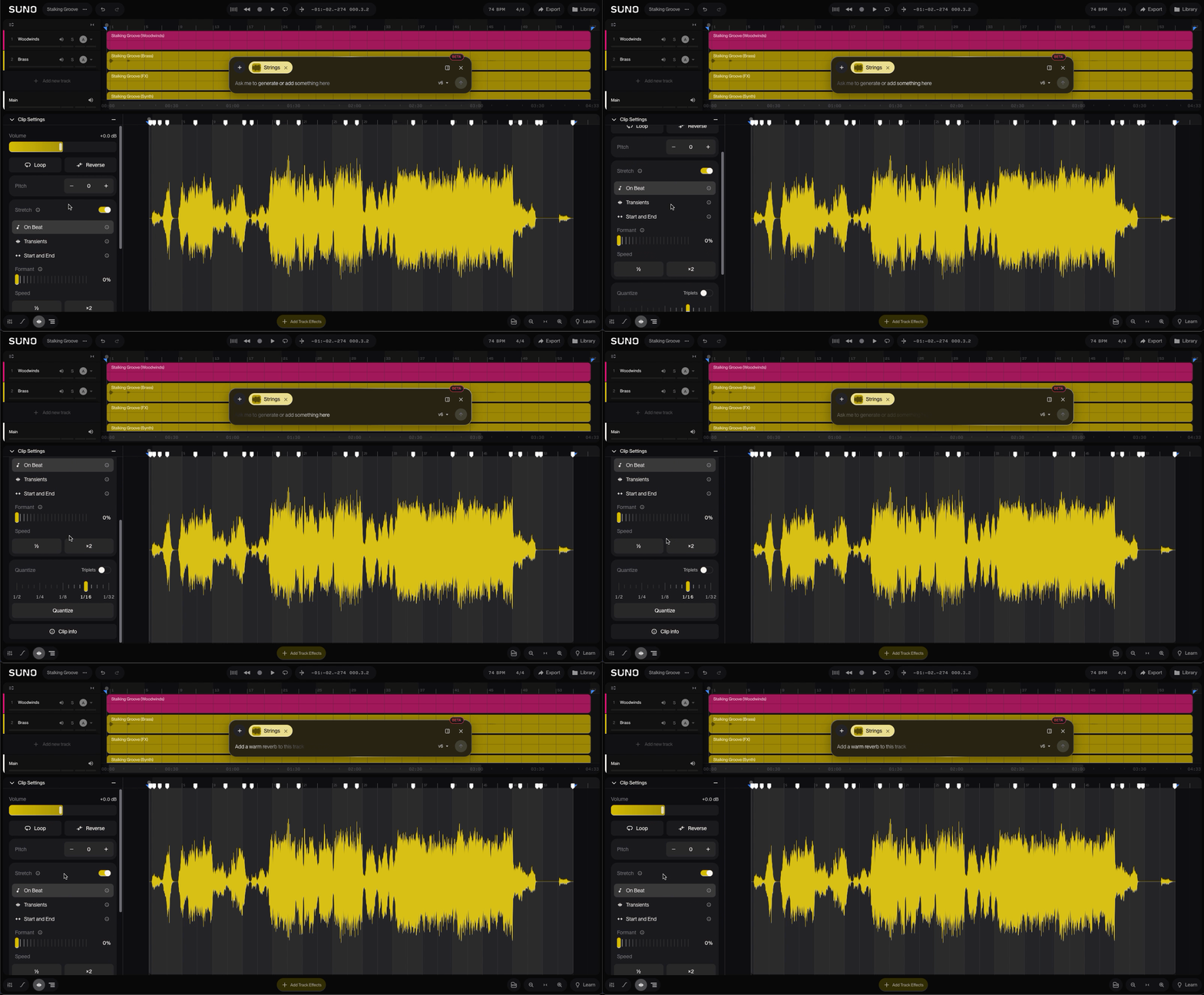
Open Clip Settings
In your Studio project, find the clip you want to edit.
Double-click the clip. The Clip Settings sidebar opens to the left of the waveform viewer.
What you can change
Volume: Set how loud the clip plays.
Pitch: Shift the clip up or down. You can tune by semitones and cents (see "Fine-tune a clip's pitch").
Loop: Repeat the clip. [placeholder: describe loop controls, e.g. loop length or count]
Reverse: Play the clip backwards.
Timestretching: Change the clip's timing without changing its pitch.
Find lyrics, style tags and stems
These moved to the Clip Info panel. Click the Clip Info button at the bottom of the Clip Settings sidebar to open it. See "View lyrics, style tags and stems in Clip Info".