
Recording in Studio
Just like any other DAW, you can record your own audio or MIDI clip onto the Timeline in Studio. But what makes Studio in Suno unique, is that we can take that audio or MIDI clip, and turn it into something else, like singing a melody that can be a string orchestra. Or recording chords on the wavetable synth to turn into an acoustic guitar!
How to Record in Studio
Arm the track by selecting the A on your track and pick your input for an audio track or a device for a MIDI track.
Click the Red record button at the top of the timeline or use the record keyboard shortcut by pressing Shift+R or the record transport button to start recording.
Press stop (or the spacebar). The take lands on the timeline instantly.
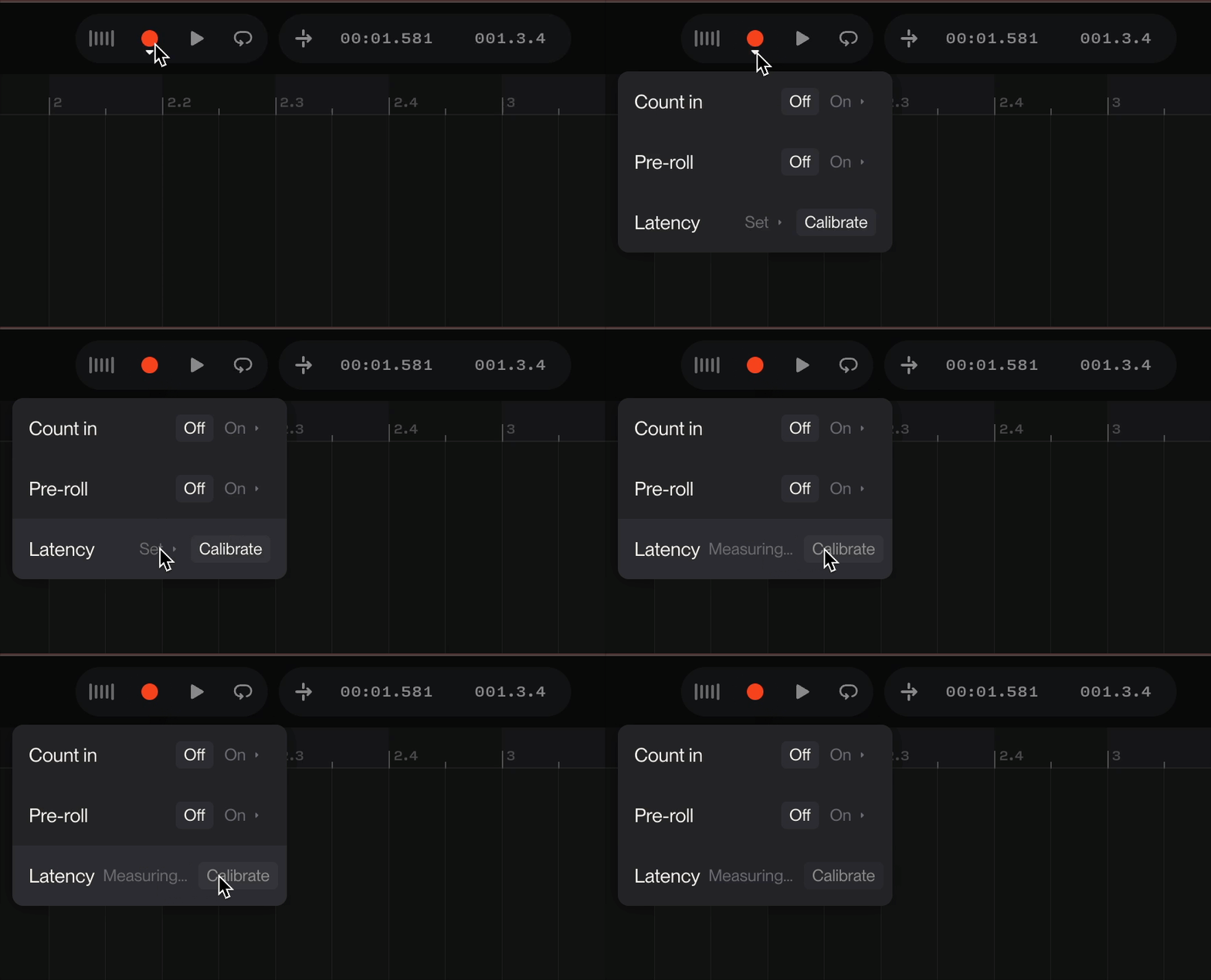
Expert Tip: If you want a count-in or some pre-roll before you record your performance onto the Studio timeline, hover over the record button and select Count-In for a 1, 2, or 4 bar count in. Alternatively, you can select Pre-Roll to give yourself a 1, 2, or 4 bar amount of playback before recording takes place on the timeline.
How to Calibrate Latency
A common occurrence when recording audio in any DAW is a slight delay when attempting to record in time and on beat with a project. This is called latency. In Studio, you can fix latency on an audio track by going to the record button at the top of the timeline, select calibrate and studio will measure the latency by sounding out brief clicking sounds.
To see more about audio recording in Studio, check out our tutorial video here!