Take Lanes in Studio
Overview
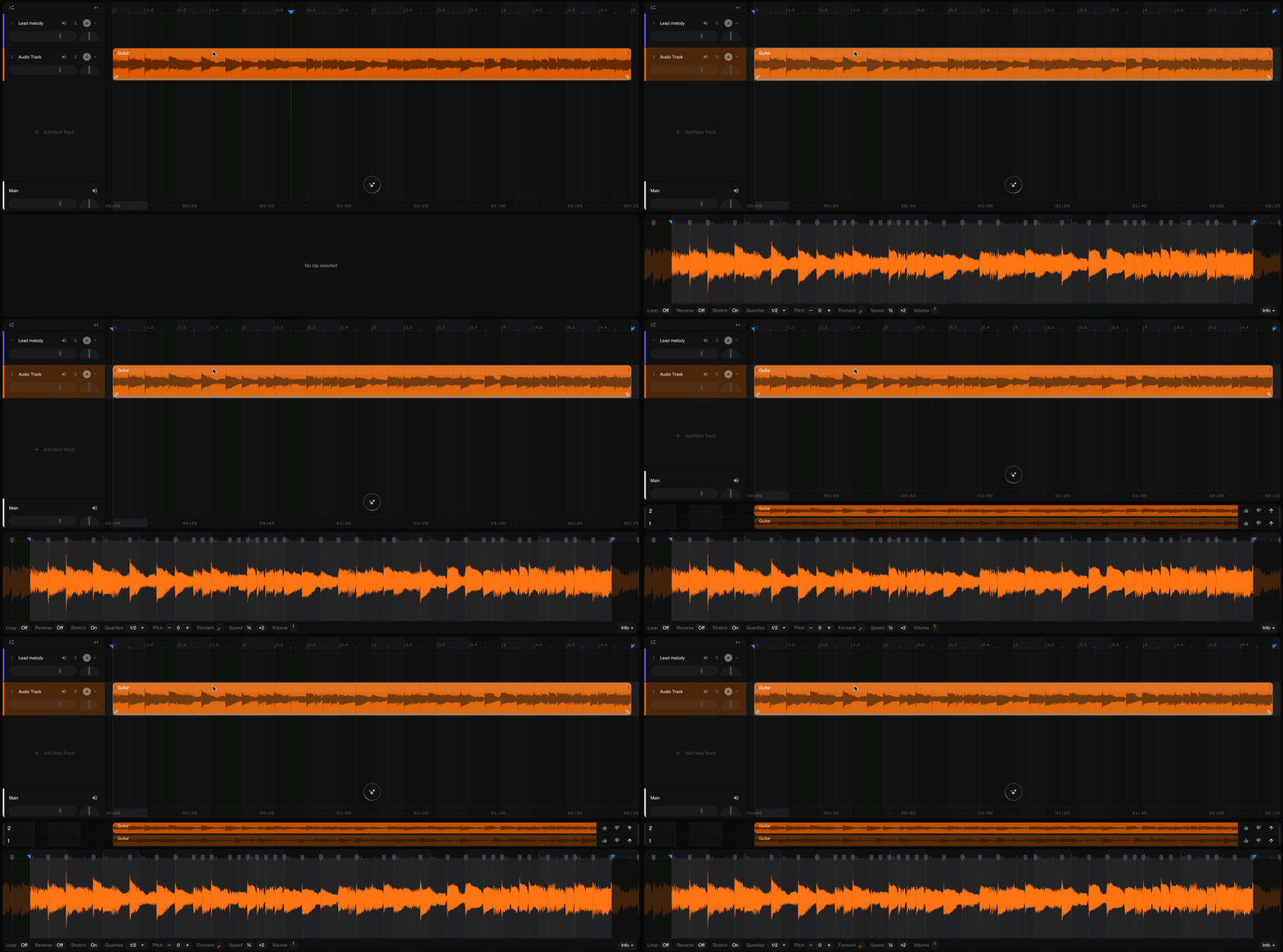
Every generation gives you two versions, and take lanes are where they live. Each track has one set of stacked take lanes, surfaced in the bottom dock's take-lanes view. From there you can:
Audition. Click a lane to solo it in place. The auditioning lane shows a bright stripe while the others dim, and the first take of a new generation auto-auditions.
Rate. Thumbs up or down on any clip. A down-vote asks "What was off?" with three answers: Sound quality, Bad timing or Multiple stems, and picking the last one offers the Stem Separator.
Promote. The commit button (or Enter) lifts the take's clips onto the main track, non-destructively.
Take lanes also act as a safety net. "Replace section" generations write the original audio into a take lane, so nothing is ever lost.
How to use it
Select a track and open the take-lanes view from the bottom pills (or use the 3 key to toggle them on/off.)
Click lanes to compare takes in place.
Rate what you hear. Ratings feed back into model quality.
Commit your favorite. The original stays recoverable via undo.