
Access your Library in Studio
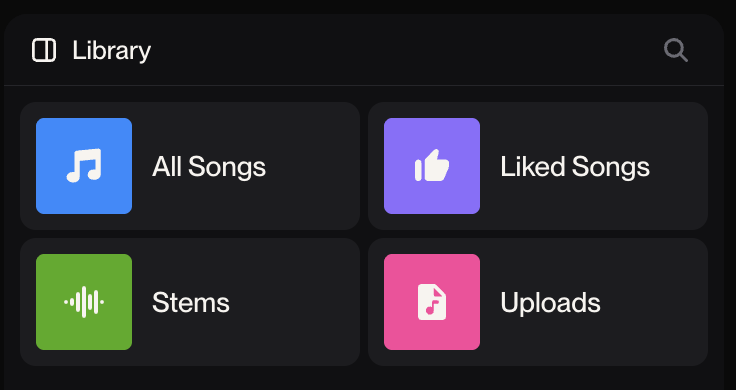
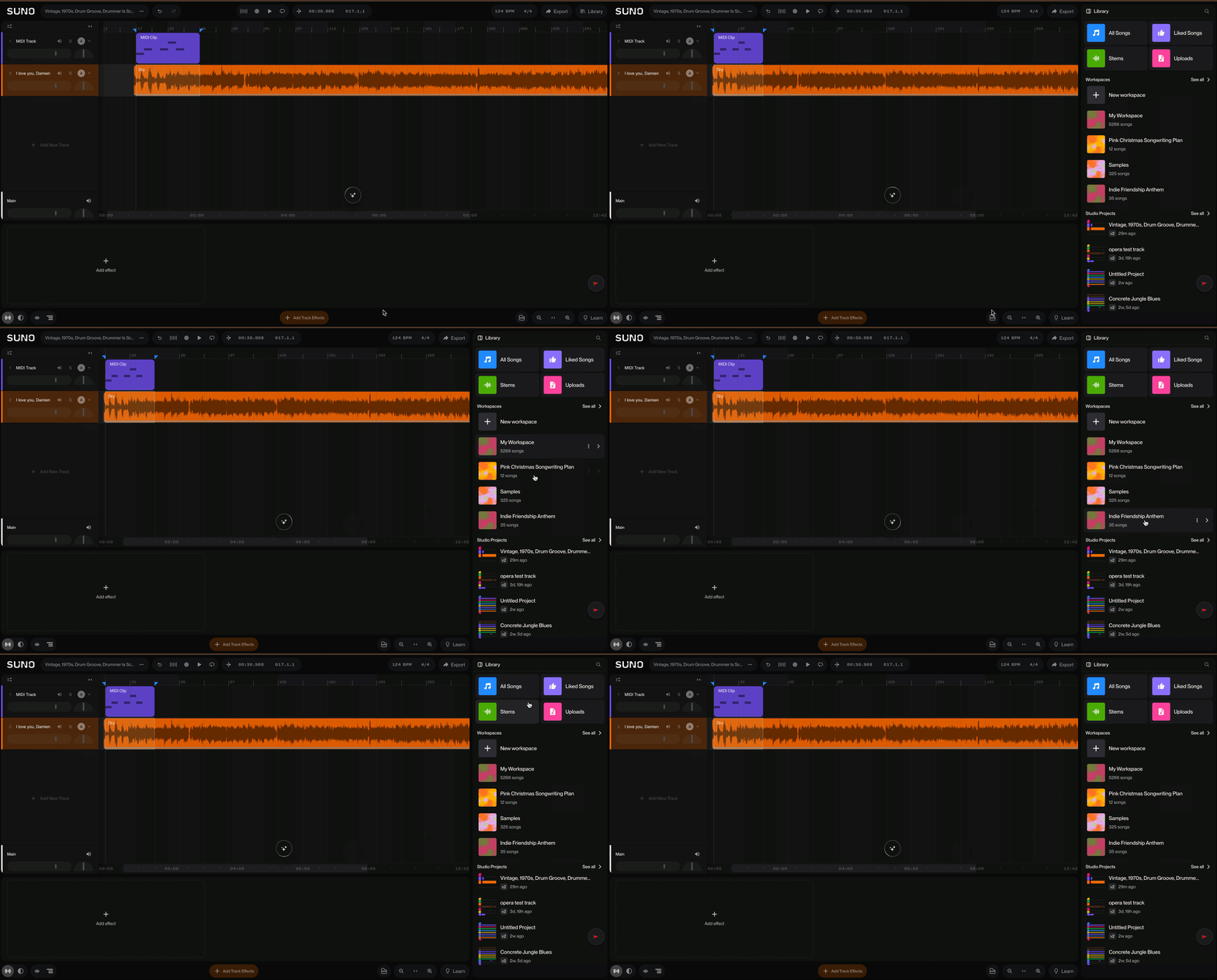
Your Suno library lives in Studio as a dock on the right side of the window. The hub view shows you All Songs, Liked, Stems, Uploads, your Workspaces and a list of your Studio Projects. Drill into a preset view and you get a filterable, searchable song list grouped by date:
Audition fast. Click a row to hear it, or walk the list with the up/down arrow keys to audition as you go.
Dig into details. Double-click a song to open Song Details, which includes a Stems tab (Auto, Split-from-mix or Custom extraction, plus "Insert all") and a Notes tab.
Drag anywhere. Pull a song onto the timeline to add it to an audio track, or drop it into the chat to attach it to a prompt.
Mini-player. A pinned player at the bottom of the dock shows the now-playing clip with a waveform and like/dislike controls. It can play alongside the main timeline, so you can preview how a clip sits against your project before committing.
The library sits on the right side in Studio because it feels more natural for browsing, and your view state (which screen, filters, search) is remembered per project.
How to use it
Press 4 (or click the Library button in the header) to toggle the dock.
Pick a view, filter or search, then audition with clicks or the arrow keys.
Drag anything you like onto the timeline.