
Audio Effects and Plugins in Suno Studio
Making music should feel tactile. Studio 2.0 introduces real-time audio effects, so there's a direct loop between "turn knob" and "hear change". Shape your sound with a set of built-in audio effects, then go further and design your own plugins with the chat bar.
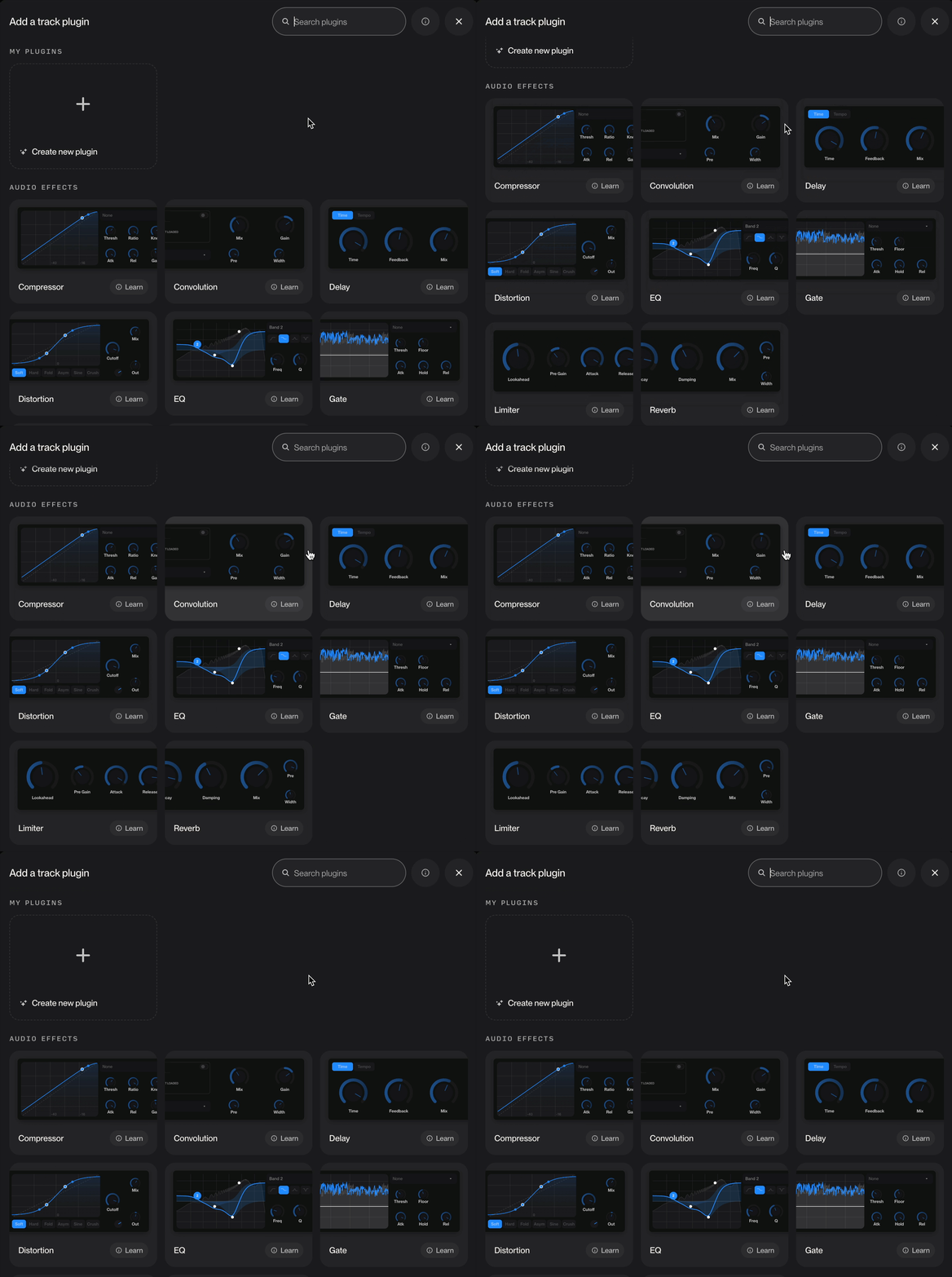
Built-in audio effects
Studio 2.0 launches with audio effects covering the essentials of mixing and sound design:
Compressor: control dynamics, with sidechain support for pumping, ducking effects.
EQ: boost or cut frequencies to carve out space in your mix.
Reverb: add space and depth to any track.
Convolution: realistic spaces that uses a sampled acoustic profile, otherwise known as an impulse response.
Delay: echoes with tempo and time-based controls.
Distortion: add grit and edge.
Gate: cut noise and tighten performances.
To add one, select a track and hit Add effect. Every effect runs in real time, so you hear every adjustment as you make it.
Effects chains
Effects belong in an ordered chain on each track. Your sound passes through each device in order, and reordering them changes the result. In the chain you can:
Drag to reorder them.
Bypass any effect to hear your track without it.
Expand an effect to fine-tune its parameters.
Save and load presets.
Design your own plugins
The built-in effects are just the start. In Studio 2.0 you can create your own plugins by describing them to the chat bar
A plugin is a custom audio effect you make with chat. It's built on the same real-time processing engine as Studio's built-in effects, so it responds instantly like everything else in your chain.
To create a plugin:
Open a project in Suno Studio.
Open the chat bar.
Describe the effect you want, for example "a warm tape delay that wobbles slightly" or "a filter that opens up on loud drum hits".
Suno Studio builds it. The chat bar may have to clarify certain parameters with you which you can confirm by clicking Build It! or Adjust Something First. You can use natural language to describe your direction — talk to the chat bar like a member of the band.
Edit and save. Ask the chat bar to tweak anything: rename controls, change how a parameter behaves or take the whole effect in a new direction. When you land on something you love, save it to your library and drag it onto any track in any project.
Note: plugins in Suno Studio are created inside Studio. Studio does not load third-party plugin formats such as VST or Audio Units.
To see audio effects and plugins in action, check out our tutorial video here!
FAQs
What's the difference between an audio effect and a plugin? Audio effects are the built-in devices that ship with Studio. A plugin is a custom effect you create with the chat bar. Both live side by side in your effects chain.
Can I save my plugins? Yes, the plugins you make get saved to your account, so you can use them in different Studio projects.
Can I use VST or AU plugins in Studio? No. Plugins in Suno Studio are created with the chat bar inside Studio. Third-party plugin formats aren't supported.
Do effects work in real time? Yes. All audio effects and plugins run on Studio's real-time processing engine, so changes are heard instantly.
Is this available on all plans? Studio is only available to Premier subscribers. You can upgrade to a Premier subscription by going to suno.com/account
Can I automate effects and plugins? Yes. Right-click the parameter you want to alter, select automate, and draw your automation curve on to the timeline. To learn more about Automation, check out our guide here.
At launch, creating new plugins won't require credits, though a credit structure may be introduced in the future.
To see audio effects in action check out our Youtube tutorial here! And to see how plugins are made in Studio, head over to this tutorial here.