
Studio Chat
Overview
The chat bar (currently in beta) is how you talk to Studio. Instead of hunting through menus, you type what you want in plain language ("make the drums punchier", "add a moody synth pad under the chorus", "give me three alternate takes of this section") and Studio makes the change. Chat sees your project, understands what you have selected and edits using the same operations you would.
Why it matters
Traditional DAWs ask you to know which tool does the job before you can use it, which can make production hard to learn and slows even seasoned producers outside their familiar workflows. The chat bar removes that friction between inspiration and execution.
If you're new to production, chat is your on-ramp. You can make real multitrack music from day one by describing what you hear in your head, and pick up the underlying concepts (tracks, takes, effects chains) by watching chat work on your project.
If you're an experienced producer, chat is a speed layer. Routine, describable work like laying down a scratch part, setting up an effects chain or generating variations becomes a one-line request, so your hands and attention stay on the creative decisions.
Your first request
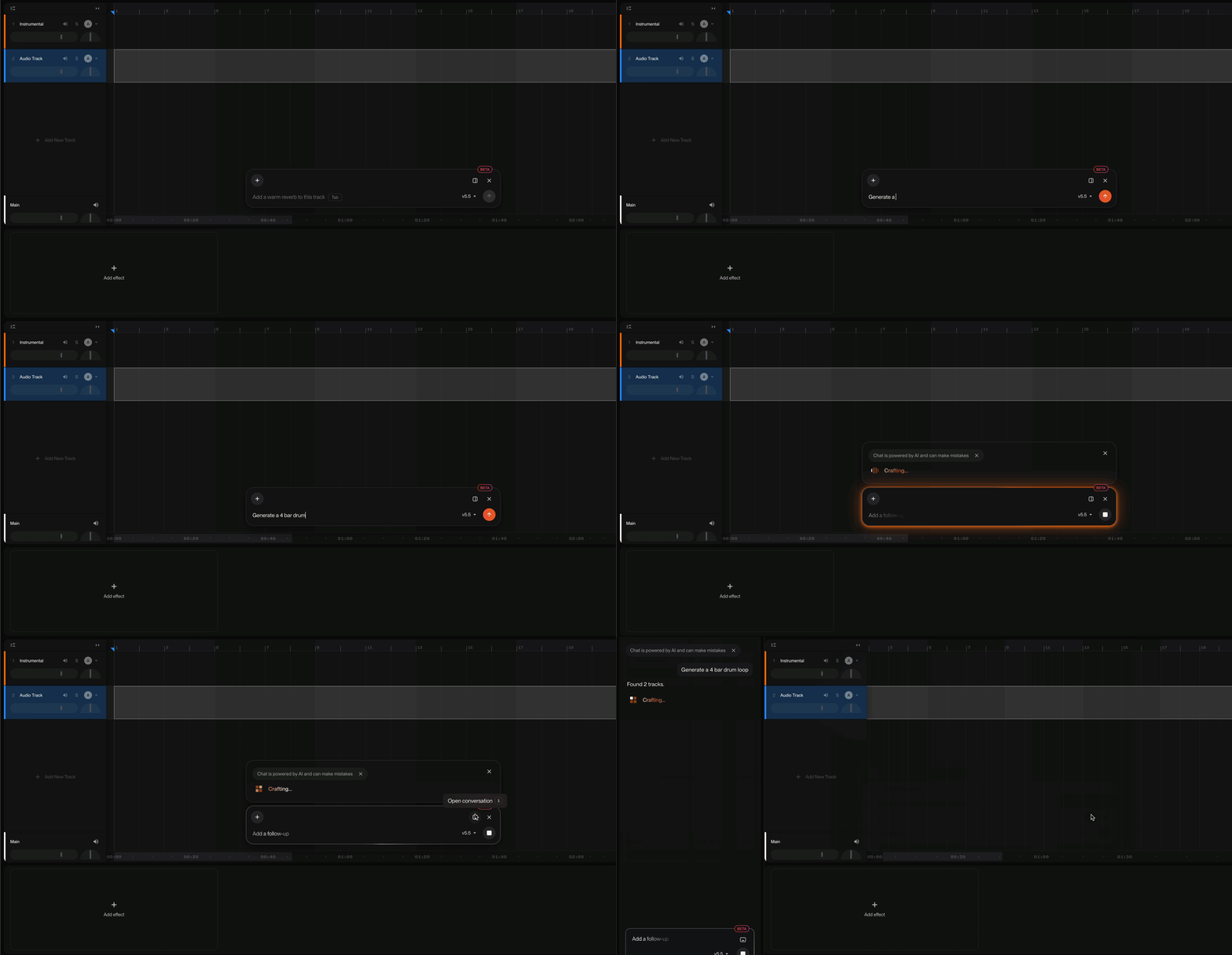
To open the chat bar, click on the circular sparkle icon in the middle of the screen, or select a track/clip and . press Enter . It expands into a full text bar, cursor ready. Type something like "add a laid-back bass line that follows the drums".
Chat narrates its work in short, live status lines ("Inspecting the tracks"), and a new bass track appears on the timeline with a generated part. When it's done, chat replies with what it did and, where useful, leaves buttons anchored to its message:
Audition Take 2 plays an alternative in place, and flips to Commit if you want to keep it.
Add to track appears when chat has built you a custom effect.
If your request is ambiguous, chat asks before guessing. A question like "Should the bass follow the kick pattern or play half-time?" appears as a poll with tappable options and waits for your answer.
You can toggle between the floating chat bar and the left-side chat dialog by pressing the 1 key.
Good to know
Everything is undoable. Chat edits through the same pipeline as your own actions, so Cmd+Z undoes a chat change exactly like one of yours. Nothing it does is a black box you can't step back from.
It sees what you see. Every request is grounded in your current context: the focused track, your selection, the project's tempo. "Make this louder" refers to the thing you have selected.
Easy to conjure and dismiss. Enter summons the prompt from anywhere and Escape dismisses it in a predictable cascade.
Your conversation sticks around. History persists per project, so tomorrow's session picks up with yesterday's context. You can clear it anytime from the settings menu.
Two surfaces, one conversation
The same conversation shows up in two places:
The Magic Bar. The floating pill/bar over the timeline. This is the quick-command form: conjure, type, submit and get back to the music.
The docked chat panel. A full-height panel on the left that opens when you submit a prompt (or press the scope control). This is where you review conversation history.
Both surfaces drive one shared session, so nothing is lost moving between them.
What chat can do
Read your project. List tracks, inspect a track's contents and settings, and see your selection and tempo.
Edit tracks and clips. The same structural edits you can make by hand, all attributed and undoable.
Generate music. Compose MIDI parts and generate alternate audio takes for a section you've selected.
Build effects. Author a custom plugin to match a described sound ("a warm tape saturation") and offer it as an Add to track button. Longer builds continue in the background so you can keep working.
Navigate for you. Open the right view for the task, like jumping to a track's effects rack, rather than telling you where to click.
Ask before guessing. Pause mid-task to ask a clarifying question with one-tap answers.