
Introducing Suno Studio 1.2
Overview
Suno Studio 1.2 is a significant update focused on giving you greater precision and control over your music. This bundle of powerful new features helps you edit, correct, and perfect your tracks with a level of detail previously unavailable. Transform your generated ideas into polished, professional compositions.
New Features & Enhancements
1. Remove FX
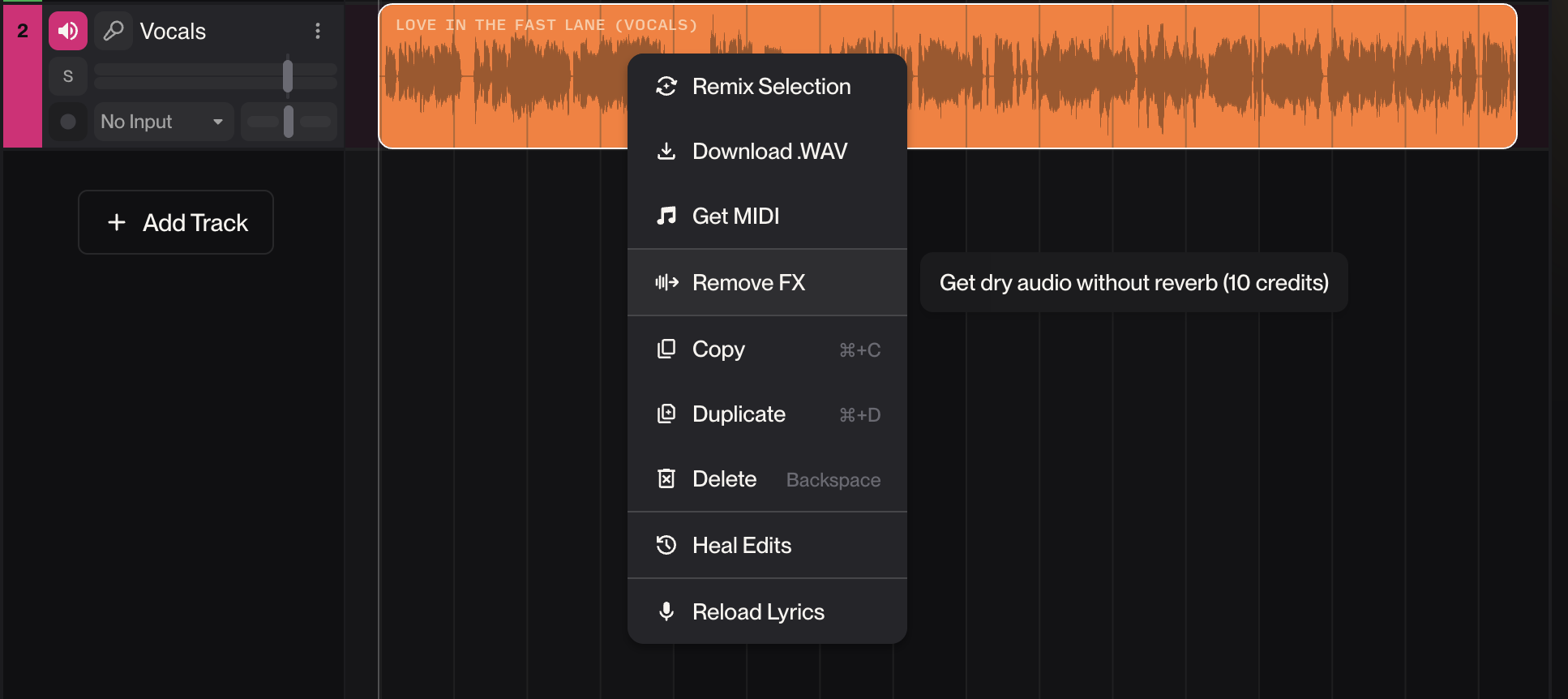
Achieve a clean, dry sound from any clip by stripping away added reverb and delay effects.
How to Use:
Right-click on any audio clip in your Studio timeline.
Select "Remove FX" from the context menu.
Suno will generate a dry version of the clip and place it on the timeline for you.
Note: This tool is perfect for isolating a vocal or instrument track for mixing, or for starting an effect chain from scratch.
2. Time Signature Support
Break free from the standard 4/4 grid. Compose in the meter that matches your creative vision.
How to Use:
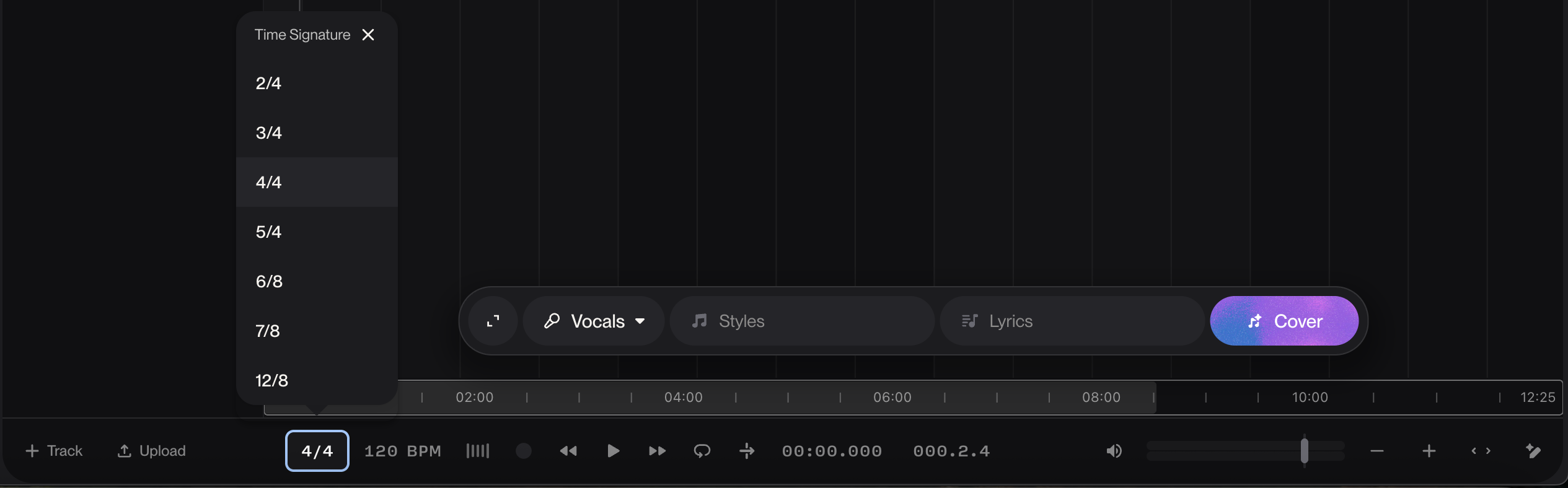
Locate the time signature picker in the bottom info panel of the Studio (next to the tempo/BPM setting).
Click to set the numerator (beats per bar, from 1 to 99) and the denominator (beat duration, e.g., 4 for quarter notes, 8 for eighth notes).
The studio grid and metronome will immediately update to your chosen signature (e.g., 3/4, 7/8, 5/4).
Important Note: Changing the time signature currently adjusts the Studio grid and metronome for editing and recording. This setting is not yet sent to generative models when creating new clips.
3. Warp Markers (Audio Timestretching)
Correct timing with surgical precision. Our state-of-the-art algorithm allows you to stretch or squeeze audio in real-time with minimal artifacts, making fine-tuning the feel of your song effortless.
How to Use:
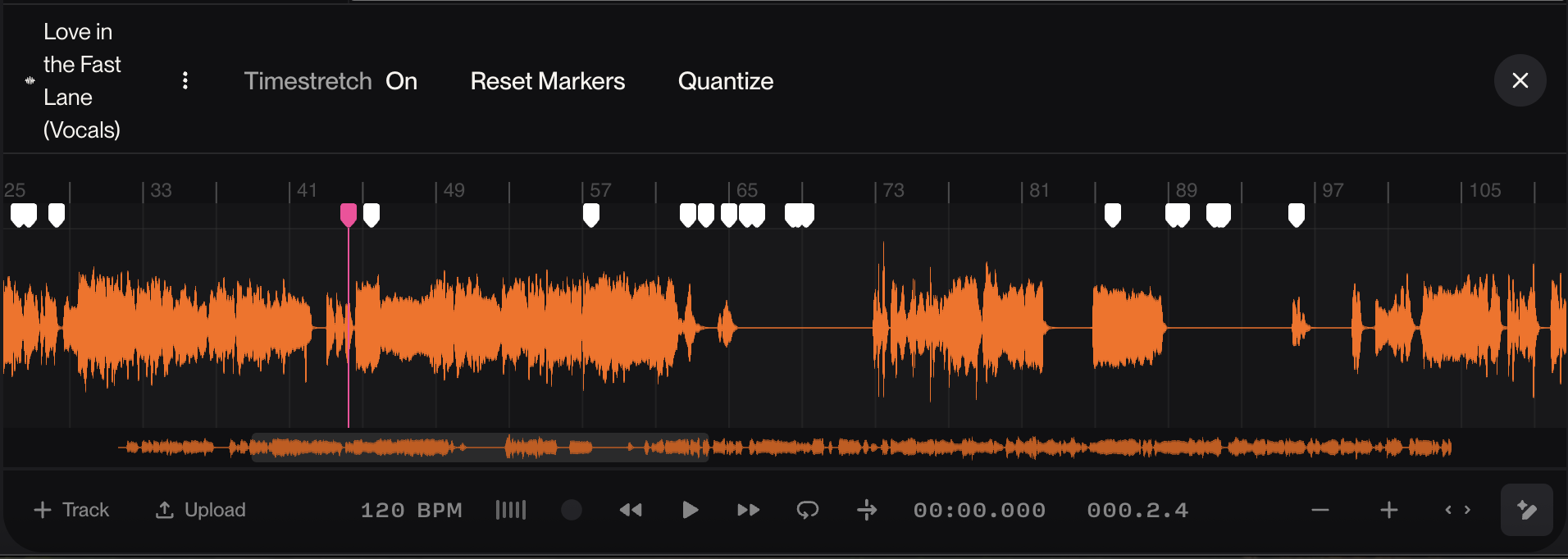
Enable Edit Mode on a clip in your timeline.
Add warp markers by clicking directly on the clip's waveform at the point you want to adjust.
Drag the markers to move that specific audio point in time, seamlessly correcting timing without affecting pitch.
4. Alternates (Updated Take Lane Behavior)
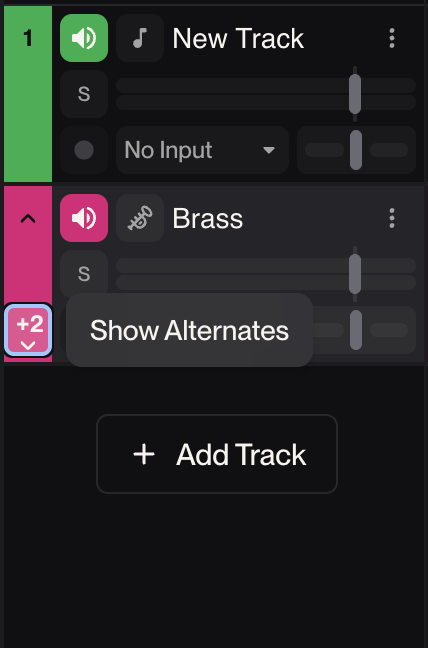
Streamlined creativity is at the heart of Studio. The improved Alternates system (found in the take lane) makes it faster and more intuitive to preview, select, and commit to your favorite generated option.
Why It Matters: This refined workflow allows you to apply your creative taste more effectively and helps you build your song from the best possible ideas.
Getting Started with Studio 1.2
These features are integrated directly into your Suno Studio workflow. To start using them:
Open any existing project or start a new one in Suno Studio.
Look for the Remove FX option in clip context menus.
Find the time signature selector in the bottom panel.
Enter Edit Mode on any clip to access Warp Markers.
Generate new content as usual to experience the improved Alternates lane.
Tips for Best Results
Remove FX: Works best on clips where reverb or delay was added during the Suno generation process.
Warp Markers: Use for subtle timing corrections. For extreme time-stretching, consider re-generating the clip with an adjusted prompt.
Time Signature: Set your desired signature at the start of a new project for a consistent grid throughout.
These tools are designed to work together. Use Time Signature to set your canvas, Warp Markers to perfect the timing, and Remove FX to clean up your sounds, all while using Alternates to choose the perfect performances.
We can't wait to hear what you create with this new level of control. Happy composing!